Introduction
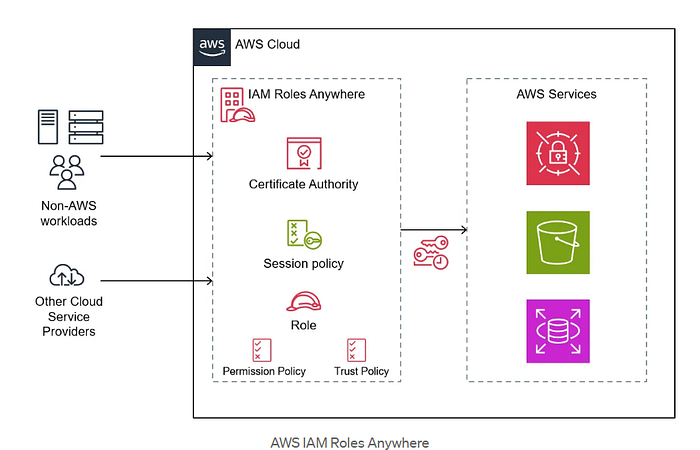
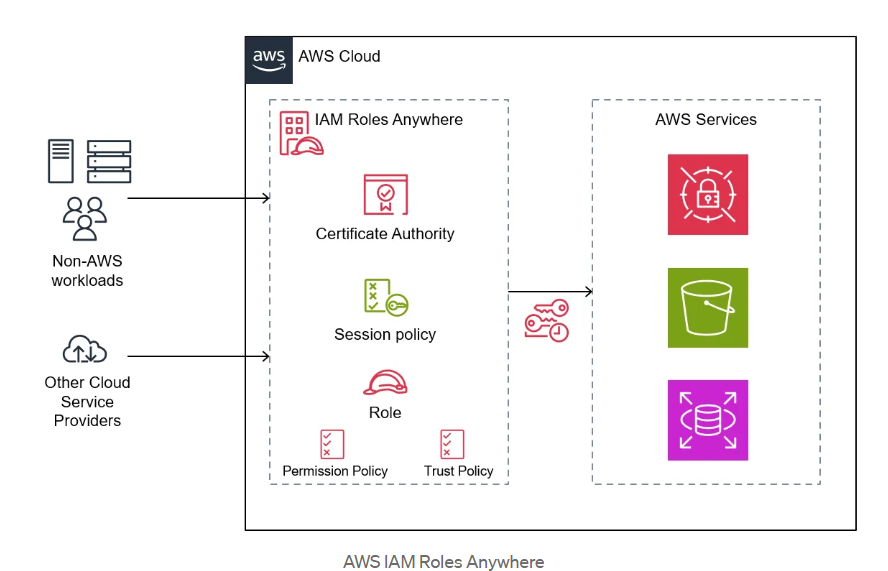
AWS IAM Roles Anywhere allows you to extend the benefits of AWS Identity and Access Management (IAM) to workloads running outside of AWS. With IAM Roles Anywhere, you can securely provide temporary access to resources for virtual machines (VMs) running on-premises or in other cloud providers by leveraging certificates and trust anchors.
This blog will demonstrate how to set up temporary read-only access to Amazon S3 for a non-AWS VM using AWS IAM Roles Anywhere.
Prerequisites
Before you start, ensure you have the following:
AWS Private Certificate Authority (CA): An active private CA in AWS Certificate Manager (ACM) Private CA.
Non-AWS VM: A running virtual machine (e.g., on-premises, Azure, or GCP).
IAM Role: An IAM role with the necessary permissions (e.g., read-only access to S3).
AWS CLI Credential Helper: The aws_signing_helper tool installed on your VM.
Step 1: Set Up AWS Private Certificate Authority
1.1 Create a Private CA
Navigate to the AWS Certificate Manager Private CA console.
Create a root or subordinate CA.
Once the CA is created, activate it and download the certificate.
1.2 Issue a Certificate for the VM
Use the ACM PCA to issue a client certificate:
aws acm-pca issue-certificate \ --certificate-authority-arn <CA_ARN> \ --csr file://vm.csr \ --signing-algorithm SHA256WITHRSA \ --validity Value=365,Type=DAYS
Retrieve the issued certificate:
aws acm-pca get-certificate \ --certificate-authority-arn <CA_ARN> \ --certificate-arn <CERTIFICATE_ARN>aws acm-pca get-certificate \ --certificate-authority-arn <CA_ARN> \ --certificate-arn <CERTIFICATE_ARN>
Save the certificate and private key securely on your VM.
Step 2: Configure IAM Roles Anywhere
2.1 Create a Trust Anchor
Navigate to the IAM Roles Anywhere console.
Create a trust anchor and attach the CA certificate.
2.2 Create an IAM Role
Create an IAM role (e.g., s3-readonly-role) with the following permissions:
{ "Version": "2012-10-17", "Statement": [ { "Effect": "Allow", "Action": "s3:ListBucket", "Resource": "arn:aws:s3:::*" }, { "Effect": "Allow", "Action": "s3:GetObject", "Resource": "arn:aws:s3:::*/*" } ] }{ "Version": "2012-10-17", "Statement": [ { "Effect": "Allow", "Action": "s3:ListBucket", "Resource": "arn:aws:s3:::*" }, { "Effect": "Allow", "Action": "s3:GetObject", "Resource": "arn:aws:s3:::*/*" } ] }
Attach a trust relationship to the role, referencing the IAM Roles Anywhere profile.
2.3 Create a Profile
Create a profile in the IAM Roles Anywhere console.
Attach the s3-readonly-role to the profile.
Step 3: Install and Configure AWS Signing Helper on the VM
3.1 Install the Credential Helper
Download the aws_signing_helper binary:
curl -Lo /usr/local/bin/aws_signing_helper https://github.com/aws/rolesanywhere-credential-helper/releases/latest/download/aws_signing_helper-linux-amd64
Make the binary executable:
sudo chmod +x /usr/local/bin/aws_signing_helper
aws_signing_helper --version
3.2 Prepare Configuration Files
Save the certificate and private key on the VM:
sudo mkdir -p /etc/iam_roles_anywhere sudo mv vm.crt /etc/iam_roles_anywhere/vm.crt sudo mv vm.key /etc/iam_roles_anywhere/vm.key sudo chmod 600 /etc/iam_roles_anywhere/vm.*
Create a JSON configuration file:
{ "certificate": "/etc/iam_roles_anywhere/vm.crt", "private_key": "/etc/iam_roles_anywhere/vm.key", "trust_anchor_arn": "arn:aws:rolesanywhere:<region>:<account-id>:trust-anchor/<trust-anchor-id>", "profile_arn": "arn:aws:rolesanywhere:<region>:<account-id>:profile/<profile-id>", "role_arn": "arn:aws:iam::<account-id>:role/s3-readonly-role" }{ "certificate": "/etc/iam_roles_anywhere/vm.crt", "private_key": "/etc/iam_roles_anywhere/vm.key", "trust_anchor_arn": "arn:aws:rolesanywhere:<region>:<account-id>:trust-anchor/<trust-anchor-id>", "profile_arn": "arn:aws:rolesanywhere:<region>:<account-id>:profile/<profile-id>", "role_arn": "arn:aws:iam::<account-id>:role/s3-readonly-role" }
Save this to /etc/iam_roles_anywhere/config.json.
3.3 Configure AWS CLI
Edit the ~/.aws/config file to use the credential helper:
[default] credential_process = /usr/local/bin/aws_signing_helper credential-process --certificate /etc/iam_roles_anywhere/vm.crt --private-key /etc/iam_roles_anywhere/vm.key --trust-anchor-arn arn:aws:rolesanywhere:<region>:<account-id>:trust-anchor/<trust-anchor-id> --profile-arn arn:aws:rolesanywhere:<region>:<account-id>:profile/<profile-id> --role-arn arn:aws:iam::<account-id>:role/s3-readonly-role region = <region>
Step 4: Test the Configuration
Run the following command to verify access to S3:
aws s3 ls
If successful, the VM will list all S3 buckets in the account.
Conclusion
AWS IAM Roles Anywhere simplifies extending IAM-based access control to non-AWS environments. By leveraging trusted certificates and roles, you can securely and temporarily grant access to AWS resources for external workloads, ensuring flexibility and security.